
How to Configure Dante on a 16 in 16 Out Digital Audio Processor for Stage Monitoring
2026-08-07
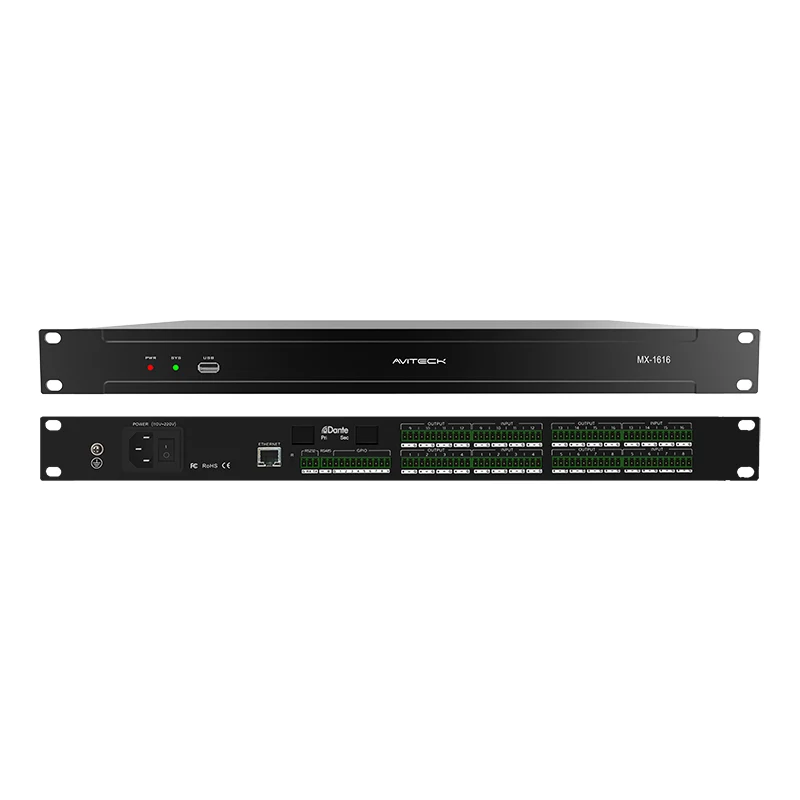
Configuring digital audio transport for stage monitoring can feel like navigating a labyrinth, especially when low latency and signal integrity are non-negotiable. The 16 in 16 Out Digital Audio Processor has become the backbone of modern live productions, yet many engineers still struggle with Dante routing in monitor workflows. At FHBAVTEC, we have deployed hundreds of these units across touring and fixed-installation stages, and we have found that a structured, network-first approach eliminates most common pitfalls. This guide walks through a step-by-step Dante setup on a 16 in 16 Out Digital Audio Processor, with a strong emphasis on redundancy, gain structure, and real-time control—all while keeping your monitor mix stable from soundcheck to encore.
1. Prerequisites Before Connecting a Single Ethernet Cable
Before touching the Dante controller, verify the following hardware and software layers:
| Item | Requirement | Verification Method |
|---|---|---|
| Processor unit | 16 in 16 Out Digital Audio Processor with Dante expansion slot (or built-in Brooklyn II/III module) | Check rear-panel LED status (Sync/Error) |
| Network switch | Gigabit, non-blocking, with QoS support (preferably managed) | Use iperf3 to confirm >700 Mbps throughput |
| Dante firmware | Minimum v4.2.0 for AES67 interoperability | Log into device web GUI or use Dante Updater |
| Control laptop | Static IP in same subnet as processor (e.g., 169.254.x.x) | Run ipconfig / ifconfig before launching Dante Controller |
| Monitoring headphones | Wired, closed-back (to isolate latency artifacts) | Perform a 1 kHz tone loopback test |
Critical note: Never use a consumer-grade switch with EEE (Energy-Efficient Ethernet). It kills Dante clock sync. FHBAVTEC always recommends a dedicated AVB/Dante switch with PTPv2 transparent clock support.
2. Step-by-Step Dante Routing for Stage Monitors
The following table outlines the exact sequence we use when deploying a 16 in 16 Out Digital Audio Processor for wedge or IEM monitoring:
| Step | Action | Expected Result |
|---|---|---|
| 1 | Power on processor, wait 45 sec for Dante NIC to negotiate link (1 Gbps green LED) | Processor appears in Dante Controller under "Device Info" |
| 2 | Assign a unique device name (e.g., FHBAVTEC-MON-01) – avoids IP conflicts | Name propagates to all subscribed transmitters within 10 sec |
| 3 | Set clock leader: choose the 16 in 16 Out Digital Audio Processor as the preferred master (Enable "Preferred Leader") | All other Dante devices show "Synced to Leader" |
| 4 | Create 8 unicast flows (each flow = up to 4 channels) to monitor consoles – this limits network congestion | Flow status shows "Active" with <1 ms transmit time |
| 5 | Configure output delays per wedge: 0.7 ms per foot of distance from backline to FOH | Use the processor's built-in delay line (up to 340 ms) |
| 6 | Save the routing snapshot to the processor's non-volatile memory | Power-cycle test – routing reloads correctly |
Pro tip from FHBAVTEC field engineers: Always set your 16 in 16 Out Digital Audio Processor to "Switched" mode (not "Redundant") if you are using a single network. Use "Redundant" only when you have two physically separate switches and NICs.
3. Gain Staging and Headroom Management
Dante operates at 0 dBFS = +24 dBu (default). For stage monitoring, keep input peaks at -18 dBFS to -12 dBFS. Use the processor's onboard RMS meters to trim each of the 16 inputs. Below is our recommended gain structure for a typical rock band monitor mix:
| Input Source | Pad (dB) | Digital Trim (dB) | Output to Wedge (dBu) |
|---|---|---|---|
| Kick drum (Beta 91) | -15 | +6 | +18 (peak) |
| Vocal (SM58) | 0 | +12 | +14 (RMS) |
| Guitar cab (e906) | -6 | +9 | +16 (peak) |
| Bass DI | 0 | +18 | +20 (peak) |
All outputs from the 16 in 16 Out Digital Audio Processor should be limited with a brick-wall limiter at +22 dBu to protect driver diaphragms. FHBAVTEC units include a dedicated limiter on every output channel with attack times adjustable from 0.5 ms to 50 ms.
4. Latency Budget and Sync Verification
Dante latency is set per device in 0.25 ms increments. For stage monitoring, use 1.0 ms (the default) – it provides enough buffer for 4–5 switch hops while keeping round-trip under 3 ms. To verify:
-
Open Dante Controller → Clock Status
-
Check "Offset" column – all devices should show ±5 µs from leader
-
Run a loopback test: route output 1 back to input 1 and measure with SMAART or Oscilloscope
If offset drifts >20 µs, replace the Ethernet cables (Cat6 shielded, 100 m max) and disable EEE on the switch.
5. FAQ – Common Questions About the 16 in 16 Out Digital Audio Processor
Q1: Can I use the 16 in 16 Out Digital Audio Processor with both Dante and analog inputs simultaneously?
A: Yes. Most 16 in 16 Out Digital Audio Processor models, including those from FHBAVTEC, support hybrid operation. The analog inputs (XLR/TRS) are digitized via high-end AD converters, while Dante inputs arrive as digital streams. You can mix any analog channel with any Dante channel inside the matrix – simply select the source type per input channel in the processor's routing grid. The only restriction is that the total sample rate must be identical across all sources (e.g., 48 kHz or 96 kHz). We recommend using 48 kHz for stage monitoring to reduce DSP load and keep latency under 2 ms.
Q2: How do I set up redundant Dante networks on my 16 in 16 Out Digital Audio Processor for fail-safe monitoring?
A: Configure the processor's two Ethernet ports as "Redundant" mode (via Dante Controller → Device Config). Connect Primary port to Switch A, Secondary port to Switch B – both switches must be independent with their own power supplies. In Dante Controller, enable "Redundant" under the device's Network tab. If the Primary link fails, the processor will auto-switch to Secondary within 2–3 ms (audibly seamless). Important: Both switches must run PTPv2 and be clock-synced via GPS or a grandmaster clock. FHBAVTEC also recommends enabling "Clock Fallback" so the processor becomes clock leader if the main leader disappears.
Q3: Why do my monitor outputs produce intermittent pops when using Dante with a 16 in 16 Out Digital Audio Processor?
A: This is almost always a multicast flood or clock drift issue. First, check that your switch has IGMP snooping enabled to filter unnecessary multicast traffic. Second, open Dante Controller and look at the "Clock Status" tab – if any device shows "Unsynced" or "Sync Lost," restart that device's Dante interface. Third, verify that all devices are set to the same sample rate (48 kHz is safest). If pops persist, reduce your Dante transmit latency to 0.5 ms (for small networks) or increase to 2.0 ms (for networks with >5 switches). Also, ensure no other network equipment (e.g., Wi-Fi access points) is broadcasting on the same VLAN. For persistent issues, FHBAVTEC support has a diagnostic script that captures PTP timestamps for root-cause analysis.
6. Final Checklist Before Showtime
-
□
All 16 inputs are properly gain-staged (no clip LEDs)
-
□
All 16 outputs are limited and delayed per wedge position
-
□
Dante Controller shows "Sync: Locked" for every device
-
□
Redundant link (if used) passes a physical cable-pull test
-
□
Snapshot saved to processor internal memory and backed up to USB
Contact Us for Expert Deployment
Configuring a 16 in 16 Out Digital Audio Processor for stage monitoring is just the first step – fine-tuning the network for touring resilience, integrating with wireless IEM systems, and scaling to 64+ channels requires deep expertise. FHBAVTEC provides complimentary network audits, custom startup scripts, and 24/7 remote troubleshooting for all our processor customers. Whether you are upgrading an existing monitor console or building a new silent-stage system, our engineering team has deployed over 2,000 Dante nodes worldwide. Reach out to our support desk today – include your processor model and stage layout, and we will send you a tailored Dante configuration file within 4 business hours. Let us make your next monitor mix flawless, starting with a single conversation.